
Cloud Kerberos Trust is an optional mechnanism that allows for a cloud joined Windows 11 client to be able to obtain Kerberos tickets from on-premise Active Directory domain controllers to be able to authenticate to on-premise services/resources, such as file servers or printers; which require Kerberos tickets for authentication.
- A native-joined Windows 11 client is only joined to the on-premise Active Directory (i.e. it has a computer object), not EntraID. It is unable to access cloud resources (directly) via EntraID, for accessing on-premise resources it obtains a Kerberos ticket from the on-premise Domain Controllers.
- A hybrid-joined Windows 11 client is joined to the on-premise Active Directory (i.e. it has a computer object), but also is joined to EntraID too. For accessing cloud resources it uses its EntraID provided authentication token(s), for accessing on-premise resources it obtains a Kerberos ticket from the on-premise Domain Controllers.
- A cloud-joined Windows 11 client is joined only to EntraID, it is not joined to on-premise Active Directory (i.e. it does NOT have a computer object). For accessing cloud resources it uses its EntraID provided authentication token(s). However, for accessing on-premise resources it uses (if configured – see below) Cloud Kerberos Trust (CKT) to obtain Kerberos Ticket from the on-premise Active Directory, even though the client is not directly joined to on-premise Active Directory.
Entra Connect Sync although not directly involved in the authentication flow does have a bearing on the authentication depending on if you are using a federated security solution (e.g. EntraID or OKTA etc.), i.e. if you are using password synch or using federation. However irrespective of what is used the authentication flow works the same, its just if/when a password is supplied direct to EntraID or not.
Authentication Flow
Cloud Kerberos Trust lets Windows Hello for Business bridge Entra sign-in to traditional on-premise Active Directory Kerberos. In effect it allows a cloud-joined Windows 11 client to authenticate with on-premise Active Directory, but without actually being joined to the on-premise Active Directory.
- Windows 11 Client → Entra ID: The user unlocks the device with their Hello PIN or biometric. The PIN unlocks a device-bound private key (created during EntraID enrollment); Windows uses it to prove the user’s identity to Entra ID. EntraID validates the proof and returns a Primary Refresh Token (PRT) and a partial Kerberos ticket (Partial TGT).
- Windows 11 Client → On-Premise Domain Controller (DC): When the user signs in or accesses an on-premises resource (e.g. a file share), Windows 11 client locates a Domain Controller and presents that partial Kerberos ticket, i.e. the Partial TGT to the Domain Controller.
- On-Premise Domain Controller (DC)→ Windows 11 Client: The DC validates the Partial TGT against the domain’s
AzureADKerberostrust Computer Object (which was created when the Cloud Kerberos Trust was first setup – see below), and then issues a normal Kerberos ticket-granting ticket (TGT). Windows uses that normal TGT to request service tickets (Ticket Granting Service Tickets – TGS) for authenticating to on-premise resources such as file shares.- Note: Protocol-wise it works just like talking to a RODC (Read-Only Domain Controller).
- Note: Direct connectivity to a domain controller is required for the first Windows Hello Sign-In (Enrollment), be it direct on-premise or via a VPN (if practical/possible).
In short: EntraID verifies the Hello credential and supplies the Partial TGT to the client; the client obtains a normal TGT from the on-premise Domain Controller by presenting the Partial TGT (it got from EntraID), the on-premise Domain Controller validates this based on the pre-existing trust (via the AzureADKerberos Computer Object) and then the on-premise Domain Controller remains responsible for issuing the Kerberos tickets (TGS) used to access on-premises resources. It is therefore necessary that the first Windows Hello sign-in needs network line of sight to the Domain Controllers to 1. get the Normal TGT from a Domain Controller, but 2. to also to actually access the on-premise resources!
The on-premise Domain Controllers do not authenticate to EntraID directly as part of the authentication flow, all the authentication flows via the Windows 11 Client machine. The only time a connection between the on-premise Domain Controllers and EntraID is made is when setting up Cloud Kerberos Trust where a computer object is created in the on-premise Active Directory which contains the key that EntraID will sign the Partial TGTs and thus the on-premise Domain Controllers will use to validate a request for a Normal TGT from a client presenting the Partial TGT it got from EntraID.
Step 1 – Setup Cloud Kerberos Trust
To setup Cloud Kerberos Trust is a simple procedure, you may or may not do it from the Domain Controller, although I’d probably recommend that you do.
Logon to a Domain Controller as a Domain Administrator, then open an Administrator PowerShell session.
We first need to ensure the Active Directory module is installed.
# First, ensure TLS 1.2 for PowerShell gallery access.
[Net.ServicePointManager]::SecurityProtocol = [Net.ServicePointManager]::SecurityProtocol -bor [Net.SecurityProtocolType]::Tls12

# Install the AzureADHybridAuthenticationManagement PowerShell module.
Install-Module -Name AzureADHybridAuthenticationManagement -AllowClobber
Now we can complete the process of creating the Cloud Kerberos Trust. It assumes that you are logged in with an account on the local machine which has sufficient Domain privileges.
# Specify the on-premises Active Directory domain. The command below will create a Microsoft Entra ID Kerberos Server computer object within this Active Directory domain, in this case its querying the current environment for the current domain, if this is not correct substitute it in the below instead.

$domain = $env:USERDNSDOMAIN

# Prompt administrator for the Microsoft 365 Global Administrator account, remember to have PIM roles assigned if required!

$userPrincipalName = Read-Host -Prompt "Enter Microsoft 365 Global Administrator Account"

# Create the new Microsoft Entra ID Kerberos Server object in Active Directory and then publish it to Azure Active Directory.
# Process will open an interactive sign-in prompt with given username to access the Microsoft Entra ID.

Set-AzureADKerberosServer -Domain $domain -UserPrincipalName $userPrincipalName
Once completed, you’ll then see a new Computer Object for the Cloud Kerberos Trust.

Step 2 – Configure Windows Hello for Business Policy Settings
1. Sign in to the Microsoft Intune admin center.
2. Navigate to Devices > Windows > Configuration > Create > New Policy.
3. Select the platform Windows 10 and Later and profile type Settings Catalog, and then click Create.
4. Name your profile as per your naming convention (add a description if required).
5. Click Add Settings, search for “Hello” and click on Windows Hello for Business.
6. Select and configure the following settings. Ensure you don’t select the ones with (User) at the end:
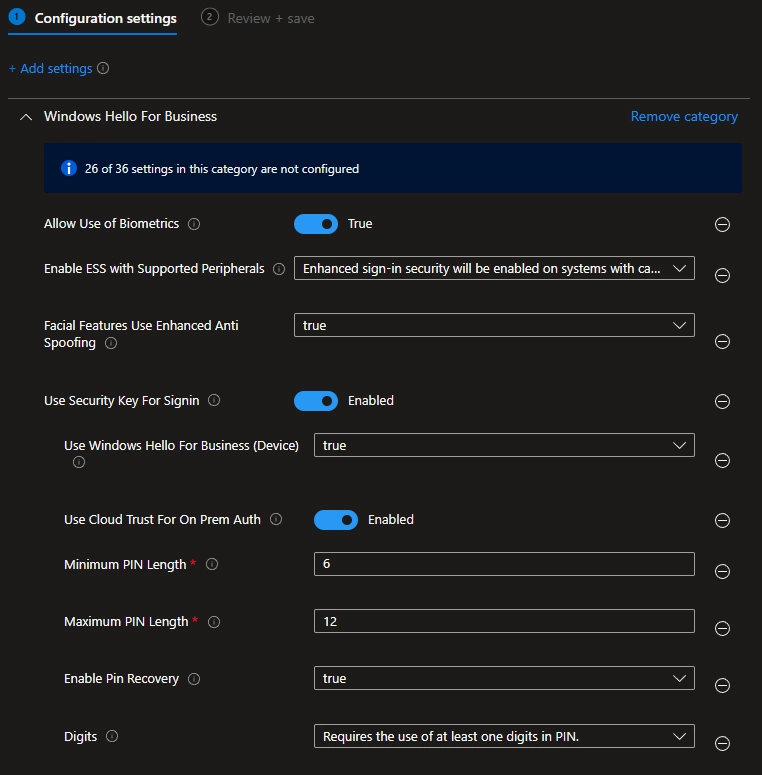
7. These settings are commoon and recommended values, you may change as per your needs, however Use Cloud Trust for On Prem Auth is required.
8. Some recommended settings may want to be used:
- Require Security Device (TPM)
- Restrict use of TPM 1.2
9. Click next, assign any required scope tags and assign the policy to any required groups and click Create.
Step 3 – Enroll Users in Windows Hello for Business
Once your Windows 11 client has got the policy above, a user logging on will be asked to enroll in Windows Hello after they sign in, this will happen before they reach their desktop.
Once the Windows hello enrollment is complete, they can try to access any on-premise network file share that the user account has at least read permissions on.
- Open file explorer.
- In the address bar, enter \\myfileserver\sharename
- The share should open without asking for credentials. That is because they have a Kerberos TGS ticket, which has been issued via the TGT from the Domain Controller and validated by the Cloud Kerberos Trust computer object and initated by Entra ID providing a partial TGT when the user first logged onto their client machine.