
A BGP peer group is: A way to apply the same configuration and policy to multiple BGP neighbours as a single unit. Kinda like Active Directory Group Policy but for BGP Neighbour (peers).
If you have specific configuration such as the timers, route policies, BFD and so forth, having to repeat that for multiple peer Router’s over and over again, especially if you have many of them is time-consuming and error-prone. Therefore, BGP Peer Groups can be used to get around this, by allowing you to group these configurations into a Peer Group, then apply the Peer Group to a number of BGP Neighbour (peer) configurations. Upon doing so, you’ve not had to manually input all of those additional configurations over and over again, very helpful, especially when your Router has 10, 20 or more BGP Neighbour peer configurations, which have configurations that are common to all of them (and are non-default configurations).
- Consistency – No forgotten policies on one peer.
- Safety – Changing policy in one place affects all intended peers.
- Maintainability – Much easier to audit.
- Performance – Less CPU during update generation.
Topology
The topology is remaining the same for this article, we’re just going to be using some BGP Peer Group configuration on Router F.
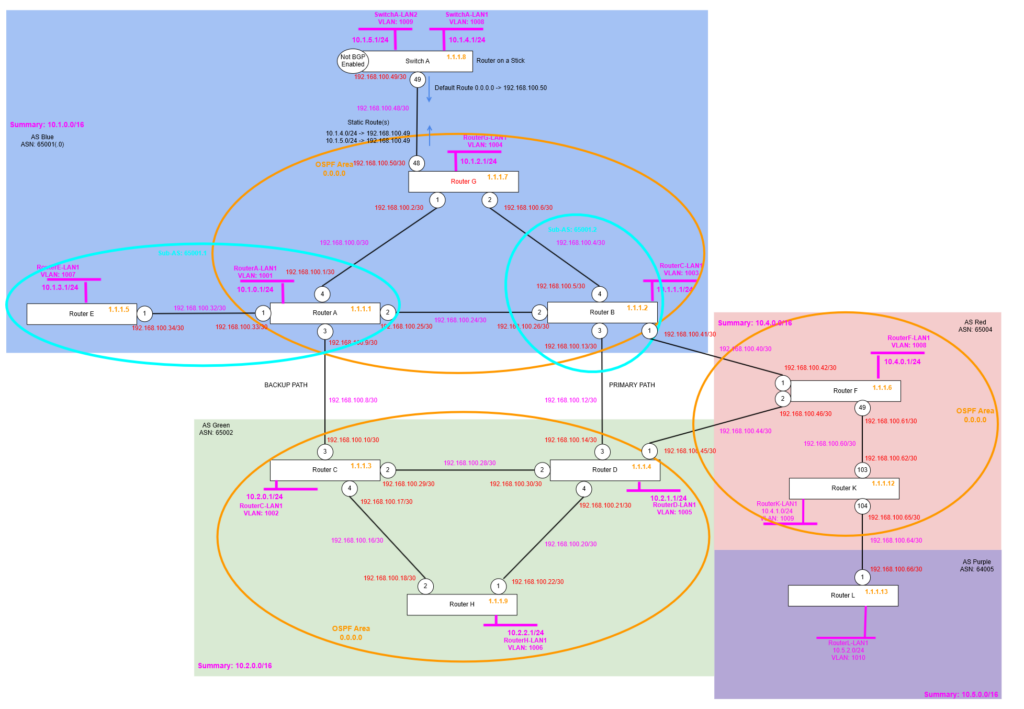
Topology Change
We’ll make a slight change to the topology, we’re going to give Router L within AS Purple (64005) its own supernet, so we have a separate route prefix to use to make things easier to see and allow for future articles.
configure bgp delete network 10.4.2.0/24
unconfigure vlan RouterL-LAN1 ipaddress
configure vlan RouterL-LAN1 ipaddress 10.5.0.1/24
configure bgp add network 10.5.0.0/24
We should now find this route is showing up within the BGP Route Table on Router K, Router F and further afield (subject to any policies which may restrict its distribution).
Simple Example
To illustrate these we’ll create a simple example on Router F, where we’ll create a Peer Group for its two BGP Neighbour relationships to Router B and Router D.
Where we’ll specify the following:
- Custom Hold Timer and Keep alive Timer configuration, attached to the Peer Group, and therefore the two BGP neighbour (peerings) from Router F to Router B and Router D.
It would be nice to specify a policy for outbound routes (to filter) attached to the Peer Group, but in our setup these are in fact different depending on the BGP neighbour, therefore a good example of something that isn’t suited for use with a Peer Group.
Router F
We first create the peer group with the required settings: Hold Timer and Keep alive Timer configuration, we’ll change these from the default (Hold Timer 180 seconds and Keep alive 60 seconds) to something shorter, that will indicate what it looks like.
create bgp peer-group BLUEGREEN
configure bgp peer-group "BLUEGREEN" timer keep-alive 15 hold-time 45
Now we have the Peer Group created, we can now add our two BGP Neighbour (peers) to this Peer Group.
configure bgp neighbor 192.168.100.41 peer-group "BLUEGREEN" acquire-all
configure bgp neighbor 192.168.100.45 peer-group "BLUEGREEN" acquire-all
If you do not specify “acquire-all” at the end of the command, only the mandatory parameters would be inherited from the per group, if you specify “acquire-all” then all the parameters are inherited, in our case we’ll want to do acquire-all.
Note that applying this command will disable the BGP Neighbour before adding it, so you will need to manually re-enable it to restore the BGP Neighbour (peering).
enable bgp neighbor 192.168.100.41
enable bgp neighbor 192.168.100.45
Then verify they move to the ESTABLISHED state once again.
Verify
So let’s check things out. We should find that both of the BGP Neighbour (peers) from Router F to Router B and from Router F to Router D are now using a Hold Timer of 45 Seconds, and a Keep alive Timer of 15 Seconds. The excerpt of the configurations can be found below highlighting the key bits of the output.
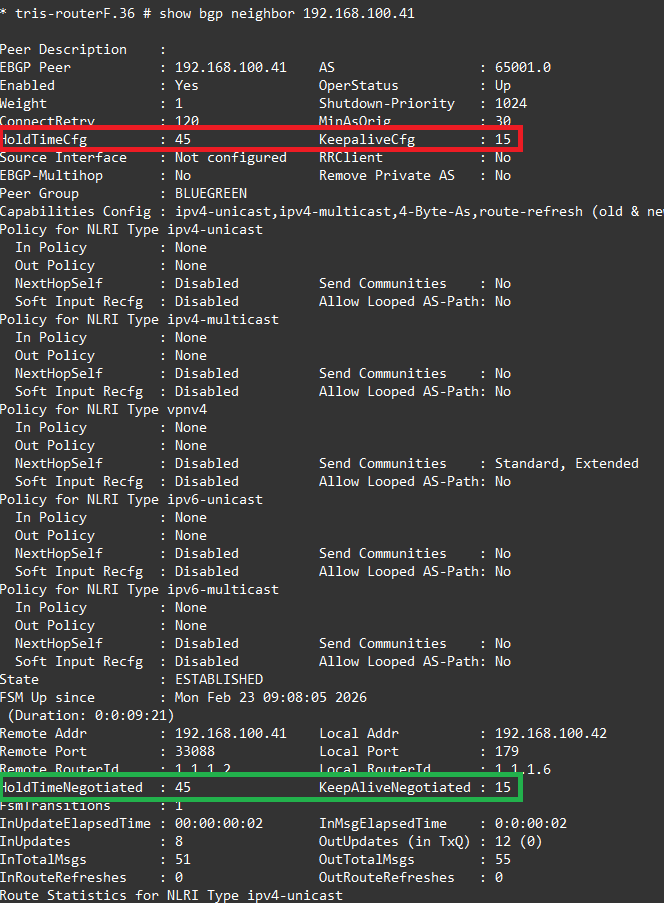
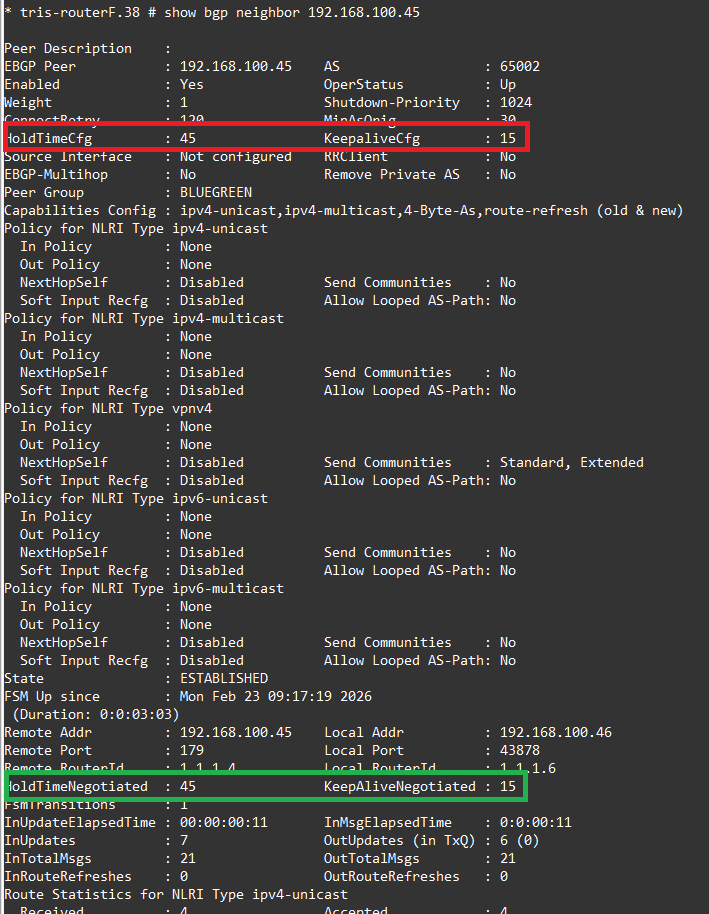
As we can see on the Router F side, both are now inheriting this Peer Group configuration which sets the Hold Timer and Keep alive Timer to 45 and 15 seconds respectively. Looking at the other sides, i.e. Router B and Router D, we can see these are configured at Hold Timer 180 Seconds and Keep alive Timer 60 Seconds, but are now using the negotiated times of 45 and 15 seconds respectively.
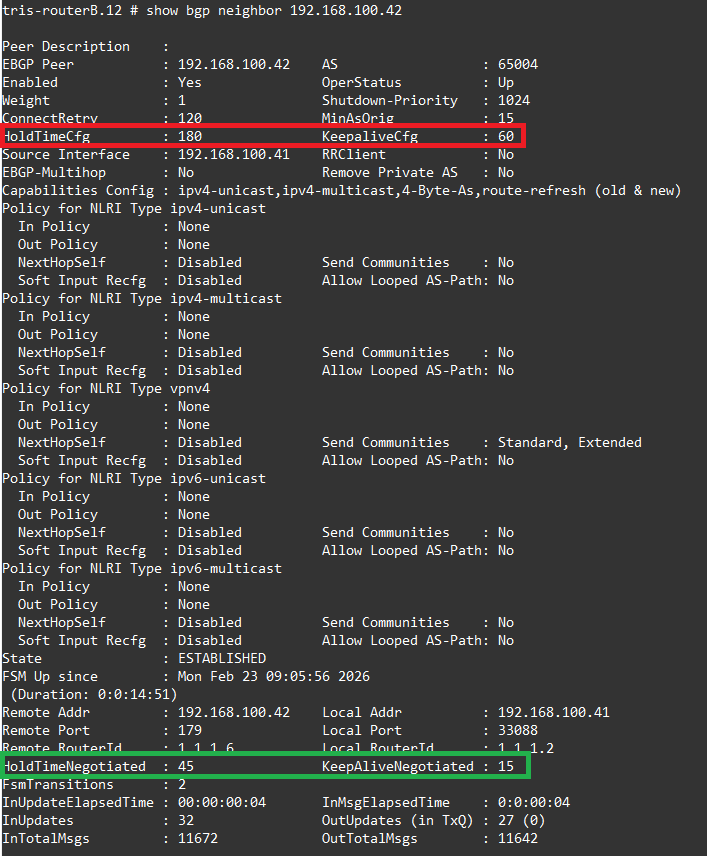
Which shows that our BGP Peer Group configuration is working as we want. If we wanted to add another BGP Neighbour (peer), it’s as simple as adding it using the command like the above.
Conclusion
We’ve learnt and explored the BGP Peer Group. A simple yet effective way to simplify your configuration, standardise your configuration, reduce the likelihood of errors, enforce configuration policies and gain performance benefits.
Although we’ve only shown a small scale simple example, imagine you have an ISP router which has 100 BGP Neighbour peers configured, you want to ensure you are only setting a specific set of routes to be advertised (via a policy) to customers, ensuring you do this 100 times, correctly every time could be a tall order, missing just one would be enough to cause the full BGP Route Table to be leaked to a customer, causing problems; this is where the real value of Peer Groups can be seen. Although even at a small scale they can have benefits.