
Throughout the whole of the series so far we have talked about IPv4. Although there are some differences when using IPv6, fundamentally you’re doing the same thing, you’re using BGP to advertise and route traffic, its just this time you’re talking about IPv6 routes instead.
Now, a key thing to remember is that IPv4 and IPv6 are different protocols, if traffic is sent out as an IPv6 packet, it cannot then change part way through its journey to use IPv4 instead to route the packet(s) – unless of course you put in place some form of technology that can convert these from IPv6 to IPv4 (and back again if required), such as NAT64.
Fundamentally though you really should be running “Dual Stack”, so the IPv4 traffic and IPv6 traffic are routed side by side as they traverse your network; however for this to work, you must have a fully routeable network using IPv4 and IPv6, and not just the routes (network prefixes) being advertised around.
You are in essence running two networks in parallel, one IPv4 based and one IPv6 based, how much the latter relies on the former to operate (e.g. route transfer) depends on how long you expect to be using both protocols side by side and your appetite for risk management.
Addressing Plan
We need to create an addressing plan so we can have some investigations into BGP with IPv6. So below is a simple addressing plan. Let’s say we’ve been allocated a global IPv6 range: 2001:db8:1000::/48
We’re going to assume that we’ll divide this up into 8 x /51 subnets, so each AS will have a /51 subnets. Within each AS we’ll then have a number of /54 subnets, which will then be divided into /64 subnets for our pretend LAN networks so that autoconfiguration (EUI-64) would work properly.
In a real situation you’d need to consider things like having a range for Loopback addresses and so on, but in this case we’re just going to just limit to the minimum number of things that we need. All the possible addresses and subnets won’t be written out, because that would be very excessive and just make things unclear.
- Point to Point – 2001:db8:1000:0000::/51
- 2001:db8:1000:0000::/54
- 2001:0db8:1000:0000:0000:0000:0000:0000/64
- 2001:0db8:1000::/127 – RK-RL
- 2001:0db8:1000::/127
- 2001:0db8:1000::1/127
- 2001:0db8:1000::2/127 – RF-RK
- 2001:0db8:1000::2/127
- 2001:0db8:1000::3/127
- 2001:0db8:1000::4/127 – RF-RB
- 2001:0db8:1000::4/127
- 2001:0db8:1000::5/127
- 2001:0db8:1000::6/127 – RF-RD
- 2001:0db8:1000::6/127
- 2001:0db8:1000::7/127
- 2001:0db8:1000::8/127 – RD-RC
- 2001:0db8:1000::8/127
- 2001:0db8:1000::9/127
- 2001:0db8:1000::10/127 – RD-RH
- 2001:0db8:1000::10/127
- 2001:0db8:1000::11/127
- 2001:0db8:1000::12/127 – RC-RH
- 2001:0db8:1000::12/127
- 2001:0db8:1000::13/127
- 2001:0db8:1000::/127 – RK-RL
- 2001:0db8:1000:0001:0000:0000:0000:0000/64
- 2001:0db8:1000:0002:0000:0000:0000:0000/64
- 2001:0db8:1000:0003:0000:0000:0000:0000/64
- 2001:0db8:1000:0000:0000:0000:0000:0000/64
- 2001:db8:1000:0000::/54
- AS Red – 2001:db8:1000:2000::/51
- 2001:db8:1000:2000::/54
- 2001:0db8:1000:2000:0000:0000:0000:0000/64 – RouterK-LAN1
- 2001:0db8:1000:2001:0000:0000:0000:0000/64 – RouterF-LAN1
- 2001:0db8:1000:2002:0000:0000:0000:0000/64
- 2001:0db8:1000:2003:0000:0000:0000:0000/64
- 2001:db8:1000:2000::/54
- AS Purple- 2001:db8:1000:4000::/51
- 2001:db8:1000:4000::/54
- 2001:0db8:1000:4000:0000:0000:0000:0000/64 – RouterL-LAN1
- 2001:0db8:1000:4001:0000:0000:0000:0000/64
- 2001:0db8:1000:4002:0000:0000:0000:0000/64
- 2001:0db8:1000:4003:0000:0000:0000:0000/64
- 2001:db8:1000:4000::/54
- AS Yellow – 2001:db8:1000:6000::/51
- AS Blue – 2001:db8:1000:8000::/51
- AS Green – 2001:db8:1000:a000::/51
- 2001:db8:1000:a000::/54
- 2001:0db8:1000:a000:0000:0000:0000:0000/64 – RouterD-LAN1
- 2001:0db8:1000:a001:0000:0000:0000:0000/64 – RouterC-LAN1
- 2001:0db8:1000:a002:0000:0000:0000:0000/64 – RouterH-LAN1
- 2001:db8:1000:a000::/54
- Unused – 2001:db8:1000:c000::/51
- Unused – 2001:db8:1000:e000::/51
Topology

First Configuration
Let’s start simple with just enabling IPv6 on Router K and Router L, we’ll then ensure each of these are advertising a network each too.
Router K

enable ipforwarding ipv6 vlan RK-RL
configure vlan RK-RL ipaddress 2001:0db8:1000::/127
configure vlan RK-RL ipaddress 192.168.100.65/30
For some reason when applying, it removed the IPv4 IP address, so I needed to re-add that again.
Router L
enable ipforwarding ipv6 vlan RL-RK
configure vlan RL-RK ipaddress 2001:0db8:1000::1/127
configure vlan RL-RK ipaddress 192.168.100.66/30
For some reason when applying, it removed the IPv4 IP address, so I needed to re-add that again.
Verify
We’ll then perform a ping test, to verify we have IPv6 connectivity between these two routers, from Router K, if you ping the other end of the point to point link….
ping 2001:0db8:1000::1When you ping an IPv6 address, rather than using the “from” to denote the source address, you need to use %<VLAN_NAME> instead, so the router knows which interface to send out of, more details within: https://geekmungus.co.uk/?p=5119
Enable IPv6 BGP on Point to Point Links
Router K
create bgp neighbor 2001:0db8:1000::1 remote-AS-number 65005
configure bgp neighbor 2001:db8:1000::1 password encrypted "#$siH6r+ht/1Vd8GQVeOKmpIkVgkzc8A=="
enable bgp neighbor 2001:db8:1000::1

enable bgp neighbor 2001:db8:1000::1 capability ipv6-unicast
Router L
create bgp neighbor 2001:0db8:1000:: remote-AS-number 65004
configure bgp neighbor 2001:db8:1000:: password encrypted "#$siH6r+ht/1Vd8GQVeOKmpIkVgkzc8A=="
enable bgp neighbor 2001:db8:1000::

enable bgp neighbor 2001:db8:1000:: capability ipv6-unicast
Enable IPv6 on LAN Networks
We’re now going to add the Subnets and IP addresses for each of the LAN networks that are connected. We’re configuring these with EUI-64 (Extended Unique Identifier) is a mechanism that will automatically generate the 64-bit interface ID portion of an IPv6 address using a device’s 48-bit MAC address. So that you don’t have to configure IPv6 addresses manually on every interface, and each IPv6 address will be still unique. Although we’re not enabling this in this case, this can fit in with RA (Router Advertisement) so that this router can advertise to devices on this VLAN (Layer 2 Segment) that it is a router so they can autoconfigure to use it as their default gateway. The use of the EUI-64, coupled with SLAAC (Stateless Address Auto-Configuration) that would allow devices connected to this network to automatically determine their IP address (without DHCP) and use a global IPv6 address within that subnet’s range, e.g. 2001:0db8:1000:2000::/64 (rather than FE80….).
Router K
enable ipforwarding ipv6 vlan RouterK-LAN1
configure vlan RouterK-LAN1 ipaddress eui64 2001:0db8:1000:2000::/64
configure bgp add network ipv6-unicast 2001:0db8:1000:2000:0000:0000:0000:0000/64
Router L
enable ipforwarding ipv6 vlan RouterL-LAN1
configure vlan RouterL-LAN1 ipaddress eui64 2001:0db8:1000:4000::/64
configure bgp add network ipv6-unicast 2001:0db8:1000:4000:0000:0000:0000:0000/64
Verify
We’ll now check the IPv6 routes (network prefixes) that are being advertised via BGP, for this we need to run a slightly different command to what we would do for IPv4.
show bgp routes ipv6-unicast allAnd there we can see our route (network prefix) for RouterL-LAN1 2001:0db8:1000:4000::/64, being advertised via BGP from Router L (AS Purple).

Second Configuration
Now let’s go a step further and add another router to be configured with IPv6, in this case Router F.
Configure Point to Point Link
Firstly we add the point to point links.
Router F
For some reason when applying, it removed the IPv4 IP address, so I needed to re-add that again.
enable ipforwarding ipv6 vlan RF-RK
configure vlan RF-RK ipaddress 2001:0db8:1000::2/127
configure vlan RF-RK ipaddress 192.168.100.61/30
Router K
For some reason when applying, it removed the IPv4 IP address, so I needed to re-add that again.
enable ipforwarding ipv6 vlan RK-RF
configure vlan RK-RF ipaddress 2001:0db8:1000::3/127
configure vlan RK-RF ipaddress 192.168.100.62/30
Enable OSPF on Point to Point Link
Before we enable BGP on the point to point link, we also need to distribute the point to point links via our OSPF protocol, otherwise routes show up as “u” (unfeasible). Why? If you think back to earlier articles, when a route is learned by a Router, it has the next-hop IP of that route, when that route is distributed unless the “next-hop-self” configuration is used, the route is sent with the original next-hop IP.
If a route to that next-hop is not present in the receiving router’s Route Table, then it is marked as “u” unfeasible and not installed into the BGP Route Table, and thus can’t be used.
So let’s fix that by adding OSPF for IPv6, so the point to point links are included into OSPF.
Now, if you get the message: “Error: Interface <VLAN_NAME> not found in current VR” this is because you have not enabled IPv6 (and set an interface IP) on it yet for example:

So we’ll do that as part of our configuration steps.
Router F
We enable IPv6 on the two interfaces from Router F to Router B and Router D, we turn on OSPFv3 (IPv6 OSPF) and remember we enable OSPFv3 on these two VLANs (as point to point links), but we only set it to “passive” so it won’t form an adjacency, otherwise that would defeat the point of using BGP!
We’ll also create a LAN1 network on Router F, so we can see that routes being originated from this Router reach Router K and also Router L in the AS Purple autonomous system too.
enable ipforwarding ipv6 vlan RF-RB
configure vlan RF-RB ipaddress 2001:0db8:1000::4/127
configure vlan RF-RB ipaddress 192.168.100.42/30

enable ipforwarding ipv6 vlan RF-RD
configure vlan RF-RD ipaddress 2001:0db8:1000::6/127
configure vlan RF-RD ipaddress 192.168.100.42/30

configure ospfv3 routerid 1.1.1.6
enable ospfv3
configure ospfv3 add vlan RF-RK area 0.0.0.0 link-type point-to-point
configure ospfv3 add vlan RF-RB area 0.0.0.0 passive
configure ospfv3 add vlan RF-RD area 0.0.0.0 passive

enable ipforwarding ipv6 vlan RouterF-LAN1
configure vlan RouterF-LAN1 ipaddress eui64 2001:0db8:1000:2001::/64
configure bgp add network ipv6-unicast 2001:0db8:1000:2001:0000:0000:0000:0000/64
Router K
configure ospfv3 routerid 1.1.1.12
enable ospfv3
configure ospfv3 add vlan RK-RF area 0.0.0.0 link-type point-to-point
configure ospfv3 add vlan RK-RL area 0.0.0.0 passive
Without this, if we were to look at the route table we’d see something like the below. Note that I have already configured BGP on the point to point link to illustrate, but we’ll do that next.
Notice the “u” next to the second route (network prefix).

All appears to be in order, we can see there Router K’s LAN1 network: 2001:db8:1000:2000::/64 being advertised as well as Router L’s LAN1 network being advertised from the other AS (Purple). Both are showing up as active routes so from that we know that the IGP is working and advertising the point to point network prefixes around the AS Red (65004) needed to ensure these are advertised.
Adding IPv6 to Another Autonomous System
So we can continue the exploration of IPv6, we’re going to enable IPv6 on another Autonomous System. First we need to enable IPv6 on the link between Router D and Router F. We already added an interface IP, so it’s just a case of creating the BGP Neighbour. Then, we’ll enable IPv6 on all the AS Green routers.
Router F
Add a BGP neighbour on Router F which has a peering directly with Router D so it is IPv6 enabled.
create bgp neighbor 2001:0db8:1000::7 remote-AS-number 65002
enable bgp neighbor 2001:db8:1000::7 capability ipv6-unicast
enable bgp neighbor 2001:db8:1000::7
Router C
enable ipforwarding ipv6 vlan RC-RD
configure vlan RC-RD ipaddress 2001:0db8:1000::9/127
configure vlan RC-RD ipaddress 192.168.100.29/30

create bgp neighbor 2001:0db8:1000::8 remote-AS-number 65002
enable bgp neighbor 2001:db8:1000::8 capability ipv6-unicast
enable bgp neighbor 2001:db8:1000::8

enable ipforwarding ipv6 vlan RC-RH
configure vlan RC-RH ipaddress 2001:0db8:1000::12/127
configure vlan RC-RH ipaddress 192.168.100.17/30

create bgp neighbor 2001:0db8:1000::13 remote-AS-number 65002
enable bgp neighbor 2001:db8:1000::13 capability ipv6-unicast
enable bgp neighbor 2001:db8:1000::13

enable ipforwarding ipv6 vlan RouterC-LAN1
configure vlan RouterC-LAN1 ipaddress eui64 2001:0db8:1000:a001:0000:0000:0000:0000/64
configure bgp add network ipv6-unicast 2001:0db8:1000:a001:0000:0000:0000:0000/64

configure ospfv3 routerid 1.1.1.3
enable ospfv3
configure ospfv3 add vlan RC-RD area 0.0.0.0 link-type broadcast
configure ospfv3 add vlan RC-RH area 0.0.0.0 link-type broadcast
Router D
enable ipforwarding ipv6 vlan RD-RF
configure vlan RD-RF ipaddress 2001:0db8:1000::7/127
configure vlan RD-RF ipaddress 192.168.100.45/30

create bgp neighbor 2001:0db8:1000::6 remote-AS-number 65004
enable bgp neighbor 2001:db8:1000::6 capability ipv6-unicast
enable bgp neighbor 2001:db8:1000::6

enable ipforwarding ipv6 vlan RD-RC
configure vlan RD-RC ipaddress 2001:0db8:1000::8/127
configure vlan RD-RC ipaddress 192.168.100.30/30

create bgp neighbor 2001:0db8:1000::9 remote-AS-number 65002
enable bgp neighbor 2001:db8:1000::9 capability ipv6-unicast
enable bgp neighbor 2001:db8:1000::9

enable ipforwarding ipv6 vlan RD-RH
configure vlan RD-RH ipaddress 2001:0db8:1000::10/127
configure vlan RD-RH ipaddress 192.168.100.21/30

create bgp neighbor 2001:0db8:1000::11 remote-AS-number 65002
enable bgp neighbor 2001:db8:1000::11 capability ipv6-unicast
enable bgp neighbor 2001:db8:1000::11

enable ipforwarding ipv6 vlan RouterD-LAN1
configure vlan RouterD-LAN1 ipaddress eui64 2001:0db8:1000:a000:0000:0000:0000:0000/64
configure bgp add network ipv6-unicast 2001:0db8:1000:a000:0000:0000:0000:0000/64

configure ospfv3 routerid 1.1.1.4
enable ospfv3
configure ospfv3 add vlan RD-RF area 0.0.0.0 passive
configure ospfv3 add vlan RD-RC area 0.0.0.0 link-type broadcast
configure ospfv3 add vlan RD-RH area 0.0.0.0 link-type broadcast
Router H
enable ipforwarding ipv6 vlan RH-RD
configure vlan RH-RD ipaddress 2001:0db8:1000::11/127
configure vlan RH-RD ipaddress 192.168.100.22/30

create bgp neighbor 2001:0db8:1000::10 remote-AS-number 65002
enable bgp neighbor 2001:db8:1000::10 capability ipv6-unicast
enable bgp neighbor 2001:db8:1000::10

enable ipforwarding ipv6 vlan RH-RC
configure vlan RH-RC ipaddress 2001:0db8:1000::13/127
configure vlan RH-RC ipaddress 192.168.100.18/30

create bgp neighbor 2001:0db8:1000::12 remote-AS-number 65002
enable bgp neighbor 2001:db8:1000::12 capability ipv6-unicast
enable bgp neighbor 2001:db8:1000::12

enable ipforwarding ipv6 vlan RouterH-LAN1
configure vlan RouterH-LAN1 ipaddress eui64 2001:0db8:1000:a002:0000:0000:0000:0000/64
configure bgp add network ipv6-unicast 2001:0db8:1000:a002:0000:0000:0000:0000/64

configure ospfv3 routerid 1.1.1.9
enable ospfv3
configure ospfv3 add vlan RH-RD area 0.0.0.0 link-type broadcast
configure ospfv3 add vlan RH-RC area 0.0.0.0 link-type broadcast
Verify
Ping and traceroute from Router H’s LAN1 network to Router L’s LAN1 network, because it’s a long path through the network. In the below we are pinging or trace routing from Router H’s LAN1 network interface IP address to Router L’s LAN1 network interface IP. If you just do a ping without specifying a from address, you’ll likely find it goes nowhere, because it doesn’t know which interface to send the traffic from.


Excellent, all appears to be in order, there is connectivity through from Router H to Router L, and back again.
Examine the Route Tables
Let’s now have a look at the Route Tables on both Router L and Router H, we can see some interesting stuff in them. You can examine the route tables with:
show bgp routes ipv6-unicast allExamining Router H first, we can see a number of routes from both its local AS (Green 65002) which appear without an AS number listed (circled in green), then we can also see routes from the other two AS: AS Red 65004 circled in Red, and AS Purple 65005 circled in Purple.

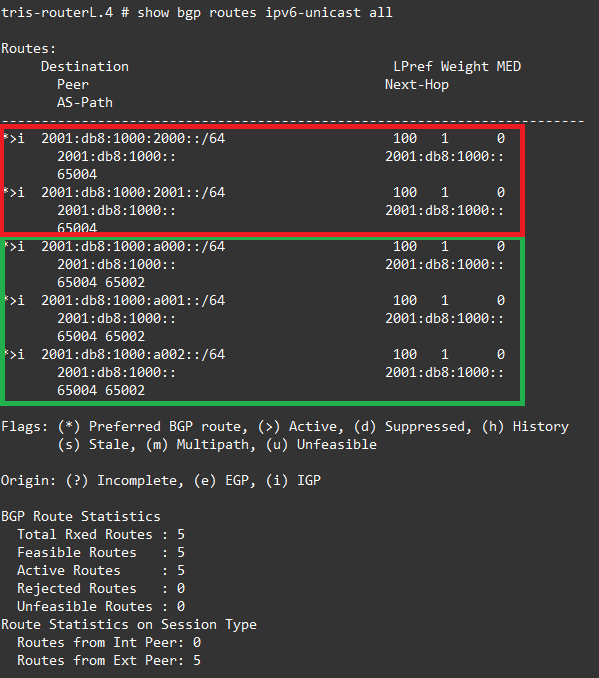
Let’s take a look Router L now, and we can see what Router L sees which is the routes from AS Green are circled in green, the routes from AS Red which are circled in Red, being that Router L is just a single router in AS Purple, we don’t see its own local LAN network shown.
What if there is a gap?
So in our topology, we have only partially implemented IPv6, some AS have support for it, while others do not.
So what happens if you were using a network in AS Blue, and you wanted to reach an IPv6 address, the simple answer is you can’t! IPv6 has not been enabled within that AS, so it can’t learn any IPv6 routes, nor has it any IPv6 interfaces for any connected devices to use.
We have enabled IPv6 in AS Green, AS Red and AS Purple. But not in AS Blue.
From an IPv4 point of view, there are multiple paths across our networks, traffic can flow from AS Green to AS Purple for example, directly from AS Green to AS Red, or via AS Blue.
However from an IPv6 point view, it cannot. AS Blue has no support for IPv6, so the loss of the single link (shown below) between AS Green and AS Red, would in effect isolate the two IPv6 networks from each other. An example of some of the reduced resilience or unexpected behaviour during network failures/maintainance that can occur if full IPv6 routing is not available.

Conclusion
We have implemented a very basic IPv6 configuration to prove how this second protocol can work side by side with IPv4, although IPv6 has been around a long time, it’s not yet fully been implemented, so for many people you’ll still be providing services on IPv4 or IPv4 and IPv6. Although in recent times we have seen IPv6 only services starting to pop-up.
Within our topology we have not gone to the lengths of removing the dependency on IPv4, however in time this would need to happen. We’ve also had to ensure our IGP (in this case OSPF) has IPv6 enabled, so it is capable of distributing the IPv6 routes around the network that underpins how BGP actually works.
We haven’t gone into full detail of IPv6 in relation to all the previous aspects of IPv6, but in many cases it all behaves the same way. Things like policies and filtering are all the same, you just need to use the IPv6 addresses instead.
Other things to consider is around performance and scalability, when you enable IPv6 you are in effect doubling the workload on the router, it now has to hold IPv4 routes and IPv6 routes, this comes at a cost of CPU and memory, so ensure you take this into consideration.