
The document provides a simple guide to how to install and use the Microsoft Graph and Microsoft Exchange Online PowerShell modules to interact with Microsoft 365 infrastructure for the purposes of administering the Microsoft 365 infrastructure and applications; i.e. how to setup your Developer Machine.
You may be able to install modules without administrative rights by adding the “scope” argument, for example:
Install-Module -name <whatever> -scope CurrentUserThe Microsoft Graph is essentially an API that allows you as an administrator/developer to access and manipulate Microsoft 365 infrastructure via the API. When using Microsoft Graph you require your account to have the relevant privileges.
Step 1 – Install Module
To install the Module run PowerShell as an Administrator.
Install-Module -Name Microsoft.GraphAnswer “Yes” to trusting the untrusted repository if/when prompted, then wait for the installation to complete (it may take a few minutes to complete).
Step 2 – Example Connection
To verify that the connection has been made successfully, we’ll connect to Microsoft 365, in this example we’re just connecting with the Scope of “User.Read.All”.
Why use Scopes? The use of Scope ensures that you are restricting what your account will do with the connection it has, its part of OAuth2 and is good security practice. If you’re going to, as in this example, just obtain a list of users within Entra ID, i.e. just reading information, by connecting with a “User.Read.All” scope we don’t risk accidentally changing information.
First import the module, you may not need to do this if you’ve just installed it, but subsequently you may need to do this before running the connect:
Import-Module -Name Microsoft.GraphNow make the connection.
Connect-MgGraph -Scopes "User.Read.All" [-Tenant-Id <Tenant ID>]You’ll now see a box asking you to login. You’ll then be redirected to your SSO provider (e.g. OKTA) where you may need to provide a MFA challenge response.
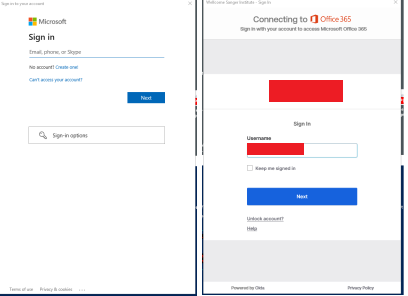
Once connected you should see the following:
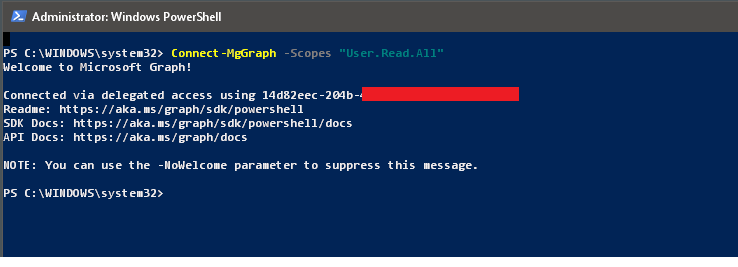
Step 3 – Perform a Test Query
Let’s get a list of all our Microsoft 365 user accounts, so now run the following:
$users = Get-MgUser
$users | Select-Object DisplayName, UserPrincipalName, Mail
And we now get our output:

Step 4 – Disconnect
Once you’ve finished your work, you then need to disconnect, although not essential it is recommended.
Disconnect-MgGraphAdditional Notes
Install-Module PowerShellGet -Force
Install-Module ExchangeOnlineManagement
Import-Module ExchangeOnlineManagement

Install-Module MSOnline
Install-Module AzureAD
Import-Module AzureAD