
Microsoft Windows 2016 does not support the newer encryption ciphers used by default by EJBCA (AES256-SHA256), therefore we need to generate a version of the certificate using the earlier encryption cipher type, i.e. TripleDES-SHA1 which is what is supported by the earlier version of Microsoft Windows, namely Server 2016.
Check Encryption Ciphers Used
Firstly get the pkcs12 certificate onto a machine with OpenSSL installed, the run the following:
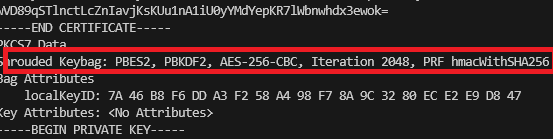
openssl pkcs12 -in old.pfx -info -nodesEnter the Import Password, if present.
Within the output you’ll see that it is indeed using AES256-SHA256 which is not suitable for Windows 2016.

Convert PKCS12 (PFX) Format from AES256-SHA256 to TripleDES-SHA1
We now convert the certificate’s encryption cipher type, we need to do this via an intermediate step converting it into PEM format then back to PKCS12 (PFX).
openssl pkcs12 -in email.p12 -out legacy-email.pem -nodesEnter the Import Password, if present.
Convert the encryption type from AES256-SHA256 to TripleDES-SHA1 with:
openssl pkcs12 -export -inkey legacy-email.pem -in legacy-email.pem -out legacy-email.p12 -macalg sha1 -keypbe PBE-SHA1-3DES -certpbe PBE-SHA1-3DESEnter Export Password (and confirm). You’ll need this later on when importing the certificate to the server.
You now have a new file called legacy-email.p12 which has the same certificate but with the correct encryption cipher type.
Check Encryption Ciphers of New Certificate File
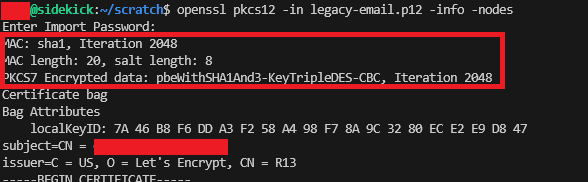
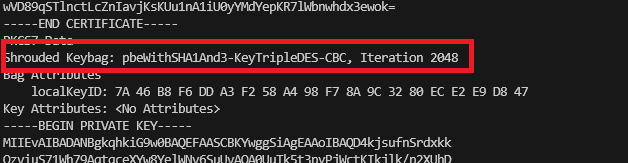
We now need to check the Certificate Cipher has been exported in the new certificate file to the legacy type, i.e. TripleDES-SHA1, so we run:
openssl pkcs12 -in legacy-email.p12 -info -nodesAnd now we can see the encryption type in the new certificate file is: TripleDES-SHA1.
We’re all set to continue now, obviously you’ll nee to be using this newly exported PKCS12 (PFX) certificate file instead!
Although this is covered in Step 3, you’ll see something like this when importing an unsupported certificate on Windows Server (2016) and then what it looks like if it works as expected.

1 thought on “Convert the Certificate for Microsoft Windows Server 2016”