
Billing and Cost Management is a significant topic, however there are some basic baseline configurations that can be added to minimise the risk of ending up with unexpected bills. The configuration below provides the mandatory standard baseline configuration, note however within your particular use case the actual threshold values (for cost and/or percentage) may differ depending on your workloads in use. The manual configuration is detailed below for guidance, however it is strongly recommended that all configuration is made via the use of the CloudFormation template given; obviously customised to your particular deployment’s requirements. Note that although we use GBP (£), costs are given in $ as this is the currency used within AWS.
CloudFormation Template
A CloudFormation Stack containing the basic budget configuration has been developed to avoid needing to configure manually, you can find the up-to-date template within:
https://github.com/tristanhself/general/blob/master/aws-basic-budget.yaml
To deploy use the following from the AWS CLI, substituting in the various Parameter Values as required, you’ll need to have logged into the target AWS Account first.
export AWS_PROFILE=my-aws-profile
aws sso login --profile=$AWS_PROFILE

aws cloudformation create-stack --stack-name "my-budget" \
--template-body file://aws-basic-budget.yaml \
--parameters ParameterKey=NotificationEmail,ParameterValue=notifyme@domain.com \
ParameterKey=BudgetName,ParameterValue="my-budget - Monthly Spend Budget" \
ParameterKey=BudgetAmount,ParameterValue=200 \
ParameterKey=CODNameMon,ParameterValue="my-budget - Cost Anomaly Detection Monitor" \
ParameterKey=CODNameSub,ParameterValue="my-budget - Cost Anomaly Detection Subscription" \
ParameterKey=AnomalyThresholdPercent,ParameterValue=10 \
--capabilities CAPABILITY_NAMED_IAM
If the budget needs to be changed, then you can update by re-running the above command (with the new budget amount for example) and instead of using “create-stack” use “update-stack” as the argument.
Determine your Thresholds and Actions
The first step before configuring any particular alerts is to determine at what cost amounts and percentages you want to set your thresholds.
- Budget – What is the budget for this particular account’s usage? e.g. $200 per month.
- Forecasted Threshold(s) – What is the threshold percentage at which you want to warn that your forecasted costs are exceeding? An example if the forecasted costs look like they are going to exceed 100% of the budget, you’ll want to know this, so you can take action.
- Actual Threshold(s) – What is the actual threshold percentage you want to be warned if you exceed? You’d always want at least one alert set to 100% of the budget, so if you were really to exceed this, you’d be warned about this occurring.
So understanding say if you expect to spend $20 per day, and so set a budget of $600 per month (30 days), is key to working out what your thresholds should be.
Also depending on how quickly you want to be alerted you can choose a Daily and/or Monthly Spend Forecast Alert.
You’ll also need to determine your actions to a threshold breach, again this varies on your use case, typically as a minimum this must be an email alert, however you may choose to implement more aggressive techniques such as shutting down resources, scaling down resources etc.
IAM User for API Access to Budget Information (Optional)
If you wish to use the API to access Budget information, e.g. via Python’s Boto, for things like automation or perhaps NagiosXI monitoring, then you’ll need to create an IAM User, which is scoped with minimal privileges, with an Access Key and Secret Key.
Determine Budget Resource ARN
Firstly determine the ARN of the Budget Resource you created earlier, strangely you can’t find this information via the GUI, and I’ve not yet found it via the API, but the AWS Budget will be following the following naming schema.
arn:aws:budgets::AccountId:budget/budgetNameSo for our particular example that will be:
arn:aws:budgets::349755379714:budget/my-budget - Monthly Spend BudgetCreate Policy
Then create the Permissions Policy with a super restricted set of permissions that may only be used on the Budget Resource you created earlier.
Identity and Access Management (IAM) → Access Management → Policies
Create a new policy with name: BudgetsReadOnlyAccess
Description: Security policy to provide minimal permissions for read only to the Monthly Spend Budget.
Substitute in the ARN of the Budget within the policy JSON:
{
    "Version": "2012-10-17",
    "Statement": [
        {
            "Sid": "BudgetsReadOnlyAccess",
            "Effect": "Allow",
            "Action": [
                "aws-portal:ViewBilling",
                "budgets:ViewBudget",
                "budgets:Describe*",
                "budgets:ListTagsForResource"
            ],
            "Resource": "arn:aws:budgets::379464549755:budget/my-budget - Monthly Spend Budget"
        }
    ]
}
Create User
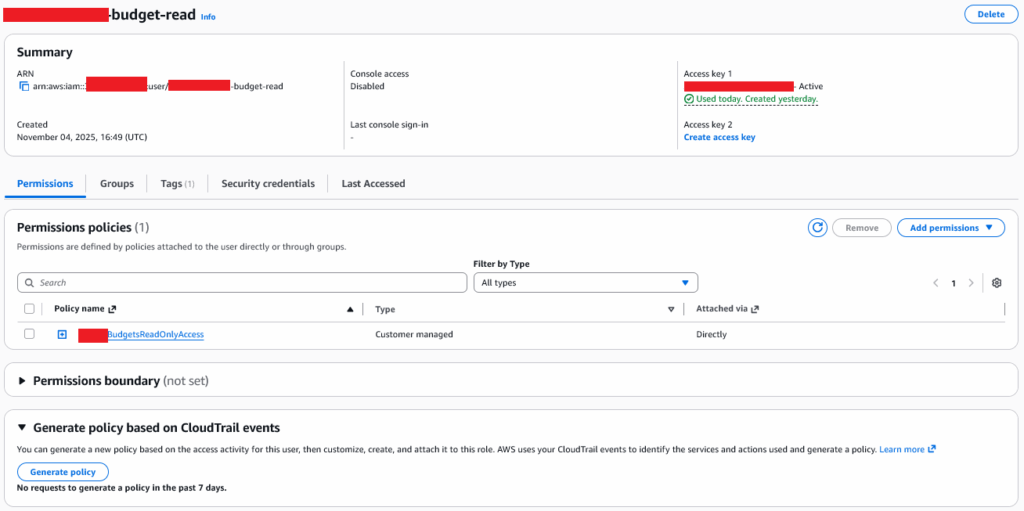
Now create a user.
Identity and Access Management (IAM) → Access Management → User
Create the user and apply the Permission Policy you just created, we’ll use the naming format <Account ID>-budget-read, so for example: 379464549755-budget-read
Create Access Key and Secret Key
Create an access key within the newly created IAM user, following the naming standard: <Account ID>-budget-read-access-key, so for example: 379464549755-budget-read-access-key
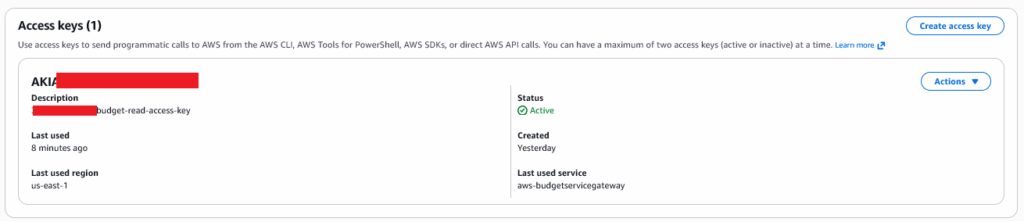
Save the Secret Key within the key safe, this is the only time you will see the Secret Key!
Now your IAM User and credentials are ready for use.
NagiosXI AWS Budget Check Plugin
A simple NagiosXI check exists that can allow you to report on the status of a budget via Nagios for easy visualisation, the warning and critical thresholds are set on the AWS Budget itself, the check plugin interprets whatever state these give to determine if it should report OK, Warning or Critical, therefore once the check is configured no further configuration is necessary. You can find the script here:
https://github.com/tristanhself/general/blob/master/check_aws_budget.py
You’ll need to have created a Dummy Host for it to be added to, but only need this host created once; for example a host called “aws” and then any of the Budget checks across whichever AWS Accounts you are monitoring can then be picked up and reported upon.
Example run the command:
./check_aws_budget.py --accountid <Account ID> --budgetname <Budget Name> --region <AWS Region> --accesskey <Access Key> --secretkey <Secret Key>With some more realistic values in the arguments:
./check_aws_budget.py --accountid 1234567890 --budgetname "My Budget" --region eu-west-2 --accesskey 354632tbg6wed6we --secretkey 354632tbg6wed6we Gives an example output as follows:

The check frequency does not need to be that frequent, 2-4 times a day should suffice, so for example once every 6 hours (360 minutes) would seem sensible.
Additional Information
It is also worth noting that there are a significant number of possible billing and cost alerts that could be added, however due to your particular use case these may be unnecessary; however to give you a range of possible (non-exhaustive list):
- Daily Spend Threshold Alert
- Monthly Spend Forecast Alert
- Service-Specific Spend Alert
- Unusually High Spend Alert
- Unused Reserved Instances Alert
- Unexpected Cost Change Alert
- Cost Anomaly Detection Alert
- EC2 Instance Size Change Alert
- Data Transfer Cost Alert
- S3 Storage Growth Alert
- Lambda Function Execution Cost Alert
- Elastic Load Balancer Cost Alert
- Zero Spend Alert (if your account is not in use)