
We’re using Containerd for to run the containers within our Kubernetes environment. But if we want to quickly spin up some containers for testing, or more likely create our own container images, we can use Docker. Before we can start to create our own container images, we need to install Docker and then register it with a DockerHub account, so we can push our created images to DockerHub, to then start up on our Kubernetes cluster.
We’re going to do a simple example where we’ll create a Container Image with NGINX, and a custom index.html page to make it obvious the container has indeed been customised somewhat.
Install Docker (Option 1)
On our Management Workstation we’ll install Docker, so we’ll install it using the following:
sudo apt update
sudo apt install docker.io -y

sudo systemctl enable docker
sudo systemctl start docker
Configure for Run as Non-Root User
To ensure you can run as a non-root user, this will add your current user designated by the $USER environment variable to the group “docker”.
sudo groupadd docker
sudo usermod -aG docker $USER
Now you can either log out of your session and back in again, or you may be able to run the following to force Linux to reenumerate your user’s group membership.
newgrp dockerVerify and Test
Verify you can indeed run as as a non-root user:
docker run hello-worldIf you get an output, that shows you can successfully run docker containers under your normal user account.
Install Docker (Option 2)
Add Docker’s official GPG key:
sudo apt update
sudo apt install ca-certificates curl
sudo install -m 0755 -d /etc/apt/keyrings
sudo curl -fsSL https://download.docker.com/linux/ubuntu/gpg -o /etc/apt/keyrings/docker.asc
sudo chmod a+r /etc/apt/keyrings/docker.asc
Add the repository to APT sources:
sudo tee /etc/apt/sources.list.d/docker.sources <<EOF
Types: deb
URIs: https://download.docker.com/linux/ubuntu
Suites: $(. /etc/os-release && echo "${UBUNTU_CODENAME:-$VERSION_CODENAME}")
Components: stable
Architectures: $(dpkg --print-architecture)
Signed-By: /etc/apt/keyrings/docker.asc
EOF

sudo apt update
Now install Docker, we’re going to use the latest version, see the Docker documentation about the installation of a specific version if you so require a specific version.
sudo apt install docker-ce docker-ce-cli containerd.io docker-buildx-plugin docker-compose-pluginOnce installed, check it is running with the following and required start it.
sudo systemctl status docker
sudo systemctl start docker
Configure for Run as Non-Root User
To ensure you can run as a non-root user, this will add your current user designated by the $USER environment variable to the group “docker”.
sudo groupadd docker
sudo usermod -aG docker $USER
Now you can either log out of your session and back in again, or you may be able to run the following to force Linux to renumerate your user’s group membership.
newgrp dockerVerify and Test
Verify you can indeed run as as a non-root user:
docker run hello-worldIf you get an output, that shows you can successfully run docker containers under your normal user account.
Login to DockerHub Account
If you were to create a new Container Image and then build it. The docker image is only stored in our local Docker repository on this Management Workstation, if we want to use this Docker image elsewhere we can, but we need to push it up to our DockerHub.
I’m assuming you have a DockerHub account already setup, so we’ll now connect it up from the Management Workstation.
cd ~
docker login -u <username>
When prompted, you’ll want to create a PAT instead. Login to the web interface, under the Profile Settings, see Personal Access Tokens, and generate one, giving it a suitable name. I’m setting it to be Read, Write, Delete.
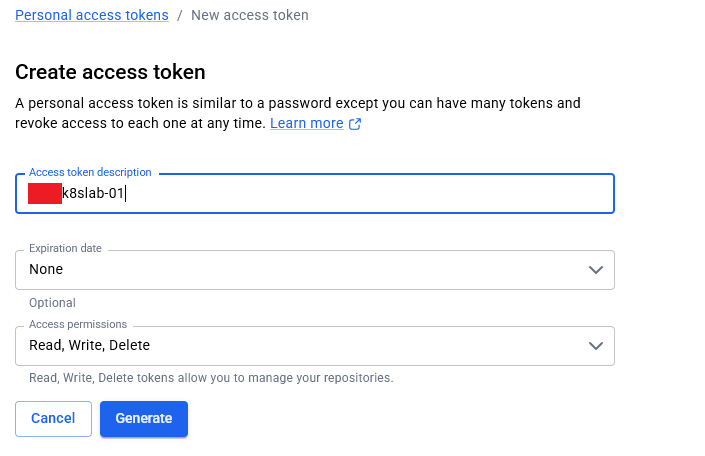
Paste the generated PAT into the password prompt on the command line.
All being well you should now find you are logged in:
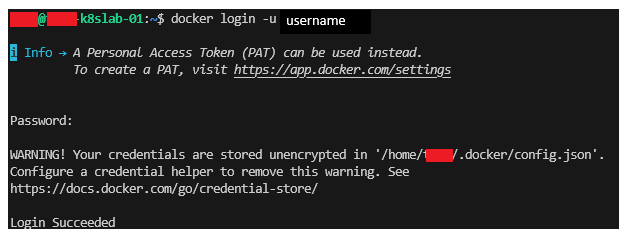
You should now be ready to push your image to the DockerHub.
Create and Build a Container Image
You may want to have a Git repository cloned to your Development Workstation to store all your Dockerfile definitions in.
Create Dockerfile Definition and Content
We’ll create a simple NGINX image, so we first create a directory to hold the Docker files and another directory within that called “nginx-custom” which will actually hold the Dockerfile and our customised index.html file.
mkdir docker
cd docker
mkdir nginx-custom
Create two files as follows:
Dockerfile
FROM nginx:1.27.0

RUN apt-get update
RUN apt-get install vim -y

COPY index.html /usr/share/nginx/html/index.html
RUN chown nginx:nginx /usr/share/nginx/html/index.html
index.html
<!DOCTYPE html>
<html>
<head>
<title>Welcome to nginx!</title>
<style>
html { color-scheme: light dark; }
body { width: 35em; margin: 0 auto;
font-family: Tahoma, Verdana, Arial, sans-serif; }
</style>
</head>
<body>
<h1>Welcome to NGINX!</h1>
<p>Wellcome to NGINX! This is a customised default image, with a replaced index.html file.</p>
</body>
</html>
Build Image
We build an image based on a Dockerfile manifest we just created:
docker build -t geekmungus/nginx-custom:v1.0.0 .Check that the Container Image is now within the local Docker image repository with:
docker image ls
Lovely, so now we have it, let’s quickly try to run it locally, before we push the image to DockerHub.
Verify and Test
Let’s quickly test it works and give us the result we expect with the following, this will automatically remove the container when stopped, so we don’t have to clean it up.
docker run --rm -d --name nginx-custom -p 80:80 geekmungus/nginx-custom:v1.0.0The container will now be running and listening on Port 80. To verify it works as expected, we CURL for the http://localhost (i.e. port 80).
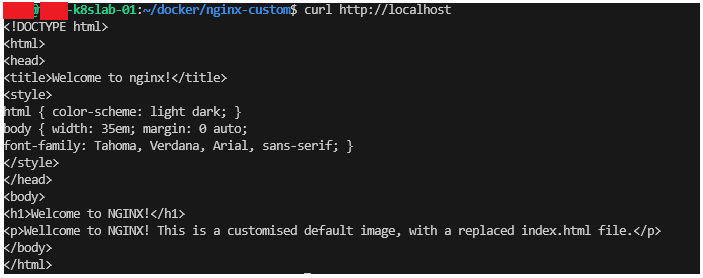
Push Container Image to DockerHub
Let’s push the image we just created up to the DockerHub, we’re already logged into DockerHub, so all we need to do is…
docker push geekmungus/nginx-custom:v1.0.0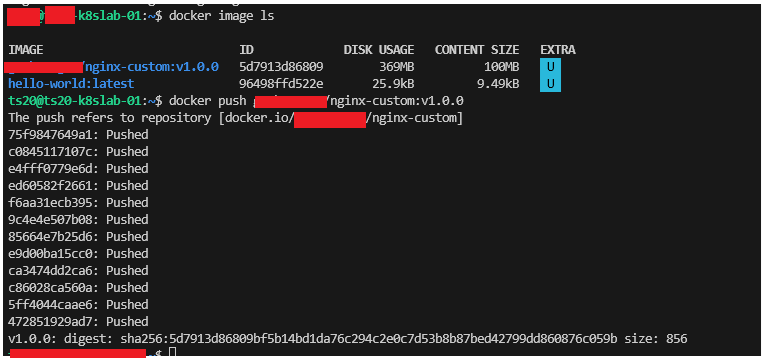
The image is now pushed to DockerHub, depending on the privacy settings of your DockerHub repositories, its now visible and able to be pulled by the Kubernetes Cluster to its own image registry, so it is able to run this image, we’ll try that in a moment.
Use Customised Image (from Repository) in Kubernetes Deployment
So now we have pushed our customised image to DockerHub. We can now actually deploy our application onto our Kubernetes environment. We first need to create a Kubernetes manifest file and apply it.
Notice that within the “containers” section of the specification, the “image” is set to “geekmungus/nginx-custom:v1.0.0”, thus specifying the container image we just created and tested (with Docker) a few moments ago.
nginx-custom-simple.yaml
# Deployment Definition
apiVersion: apps/v1
kind: Deployment
metadata:
  name: nginx-custom
  labels:
    app: nginx-custom
spec:
  replicas: 1
  selector:
    matchLabels:
      app: nginx-custom
  template:
    metadata:
      labels:
        app: nginx-custom
    spec:
      containers:
        - name: nginx-custom
          image: geekmungus/nginx-custom:v1.0.0
          ports:
            - containerPort: 80
          resources:
            requests:
              cpu: 256m
              memory: 128Mi
            limits:
              cpu: 512m
              memory: 256Mi
---
# Service Definition
apiVersion: v1
kind: Service
metadata:
  name: nginx-custom-service
  labels:
    app: nginx-custom
spec:
  type: LoadBalancer
  allocateLoadBalancerNodePorts: true # Requires a redeploy to add or remove.
  selector:
    app: nginx-custom
  ports:
  - port: 80
    targetPort: 80
Now we apply it as follows:
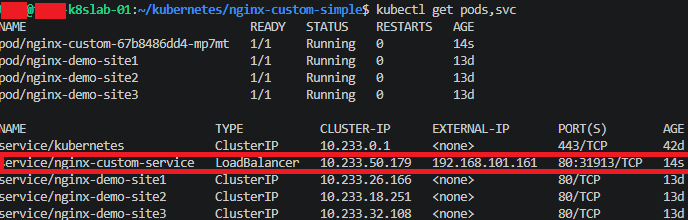
kubectl apply -f nginx-custom-simple.yamlWe can then check it is running as expected with:
kubectl get pods,svcAnd as we can see in the output below, we can see the “nginx-custom-service” which has a LoadBalancer and an external IP address 192.168.101.161 (in this example). Ignore the other things running.
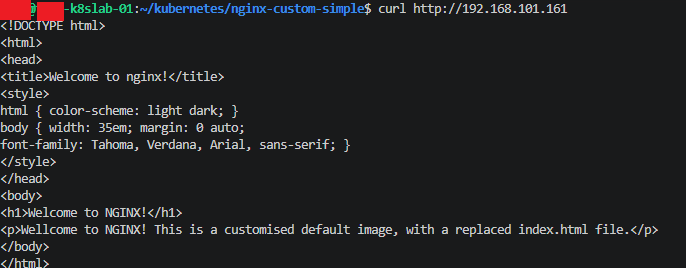
If we now try to access the service with CURL, we can indeed see its running our customised image.
curl http://192.168.101.161We can indeed see our customised image has been used and is indeed running.
Conclusion
Although a simple example, the above gives you the flavour of the kind of approach you need to take when you build and deploy an application to your Kubernetes cluster. Although in the real world you would have built and configured an automated process for this, so that you would be able to create, test and deploy images within some form of a pipeline so that manual steps would not be required.
With the basis of the above, we are now good to begin to move onto our topics within the series.