
The Web Proxy Auto-Discovery (WPAD) Protocol is a method used by clients to locate the URL of a configuration file that provides them with configuration needed to determine their browser’s (or system) web proxy configuration (if present or not). The file an be published via DHCP (scope option) or via DNS, in our case we use DNS.
The web browser will typically send a DHCPINFORM query to the DHCP server, which if the relevant DHCP scope option is present, will send the URL in the server’s reply. If the DHCP server does not have this scope option configured, DNS is used instead.
For example if the domain suffix of the user’s computer is myfancypc.internal.domain.com, then the browser will attempt the following URLs in an attempt to find the proxy configuration file within the domain of the client:
- http://wpad.internal.domain.com/wpad.dat
- http://wpad.domain.com/wpad.dat
Once it has found a URL that responds (or really a DNS FQDN that resolves to something), the client’s browser makes a request for the URL and downloads the file via HTTP. It is crucial that if a WPAD DNS record exists that the URL to which it points is 1. available at all times and 2. is reachable directly by all the clients/machines on the network. If the WPAD DNS record exists, but the server that hosts the wpad.dat file is either down, or perhaps connectivity to it is blocked (by a firewall) from the client, then issues can occur, these are discussed briefly in a section below.
How you choose to host your WPAD.dat file is up to you, but methods like adding to a load balancer or an internal web server are common approaches.
Example WPAD.dat File
And example wpad.dat would look like this:
function FindProxyForURL(url, host) {
  return "DIRECT";
}
Symptoms of WPAD Unavailability
If you domain contains wpad.domain.com, e.g. wpad.sanger.ac.uk then you need to ensure it is available so your devices/hosts can reach the wpad.dat file, or you’ll see the symptoms of it not being available, which if devices/hosts must use the web proxy to access the Internet, they’ll likely be unable to. However if devices/hosts have direct Internet access, the presence of the wpad.domain.com as a DNS FQDN, will trigger the auto-discover processes within the browser, which will then mean they will wait up to 45 seconds to try to get a response and get the wpad.dat file.
Although after this you should find that browser will give up and then move to just use DIRECT connection; however if the host/client is blocked from direct Internet access and must use a proxy server, then you’ll need to determine why the WPAD.dat is not available, or manually configure the proxy server configuration instead.
Testing Availability
To verify if your WPAD.dat file is available, you can just try to go to https://wpad.domain.com/wpad.dat does it prompt you to download the file, if you can successfully download the file and inspect its contents, which like the above example, then you should have all your need for the proxy auto-configuration to work as expected.
Workaround
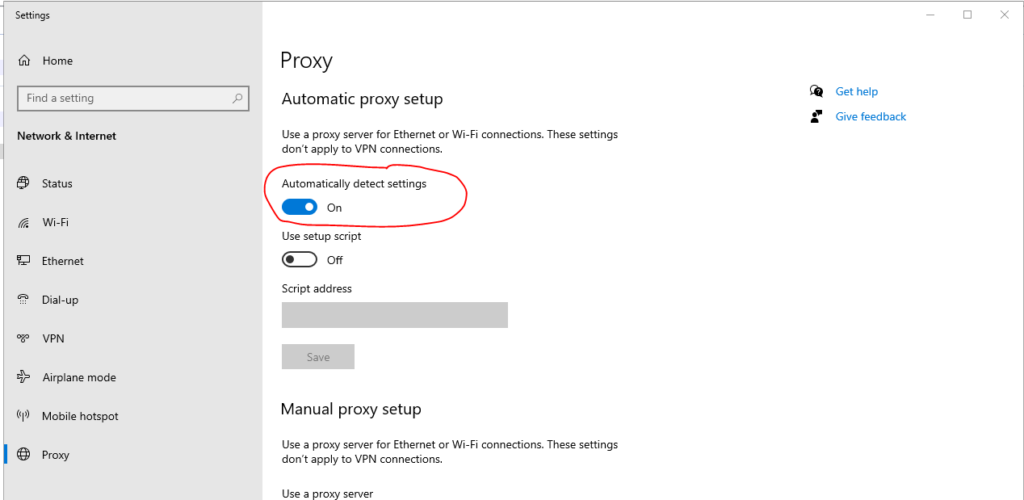
To firstly verify if you are getting the issue of the 45 second or so delay when attempting to access a website from the browser for the first time, you can disable the auto-discover (or auto-configuration) feature of the web browser. An example is shown below for Google Chrome, other browsers have a similar mechanism, and may or may not use the Operating System’s proxy configuration (e.g. Microsoft Windows: Edge and Google Chrome use the Windows proxy configuration, while Firefox uses its own).
Fix
Ensure the server hosting the wpad.dat file is accessible via HTTP and HTTPS from the client, if the wpad.yourdomain.com is present in your DNS zone which matches one or more of the search suffixes of your host.